Extraordinary has a built-in Public Transport email activation campaign to help you get your employees signed up to the Tax-free Public Transport benefit.
This campaign is a sequence of six emails sent on day one, day three, and once a week for the next four weeks. The purpose of the emails is to educate employees about the Public Transport benefit, and to encourage them to sign up.
When employees click the link in the email to sign up, they're directed to the User Election Form to enter their desired contribution amount and agree to the terms. Here's our guide on configuring the Election Form to suit your organisation's requirements.
Email campaign settings
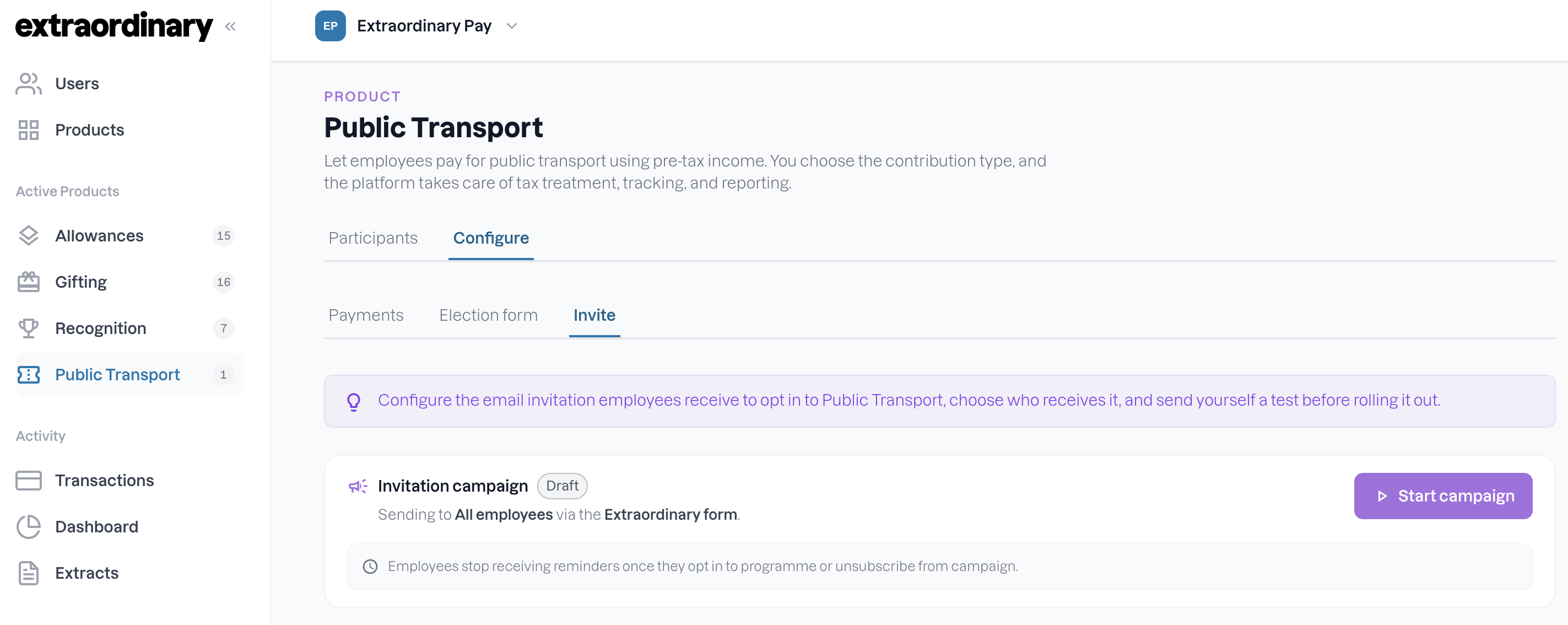
Head to the Extraordinary Public Transport page: https://customer.extraordinarypay.com/public-transport or select Public Transport from the left navigation menu.
Navigate to Configure - Invite
CAUTION: Pressing the "Start campaign" button will immediately send an email to all employees. Just in case you wanted to press this straight away to see what it does...
What can I configure?
The Audience. Choose which employees receive the invitation - All employees or select / exclude certain users based on User Tags.
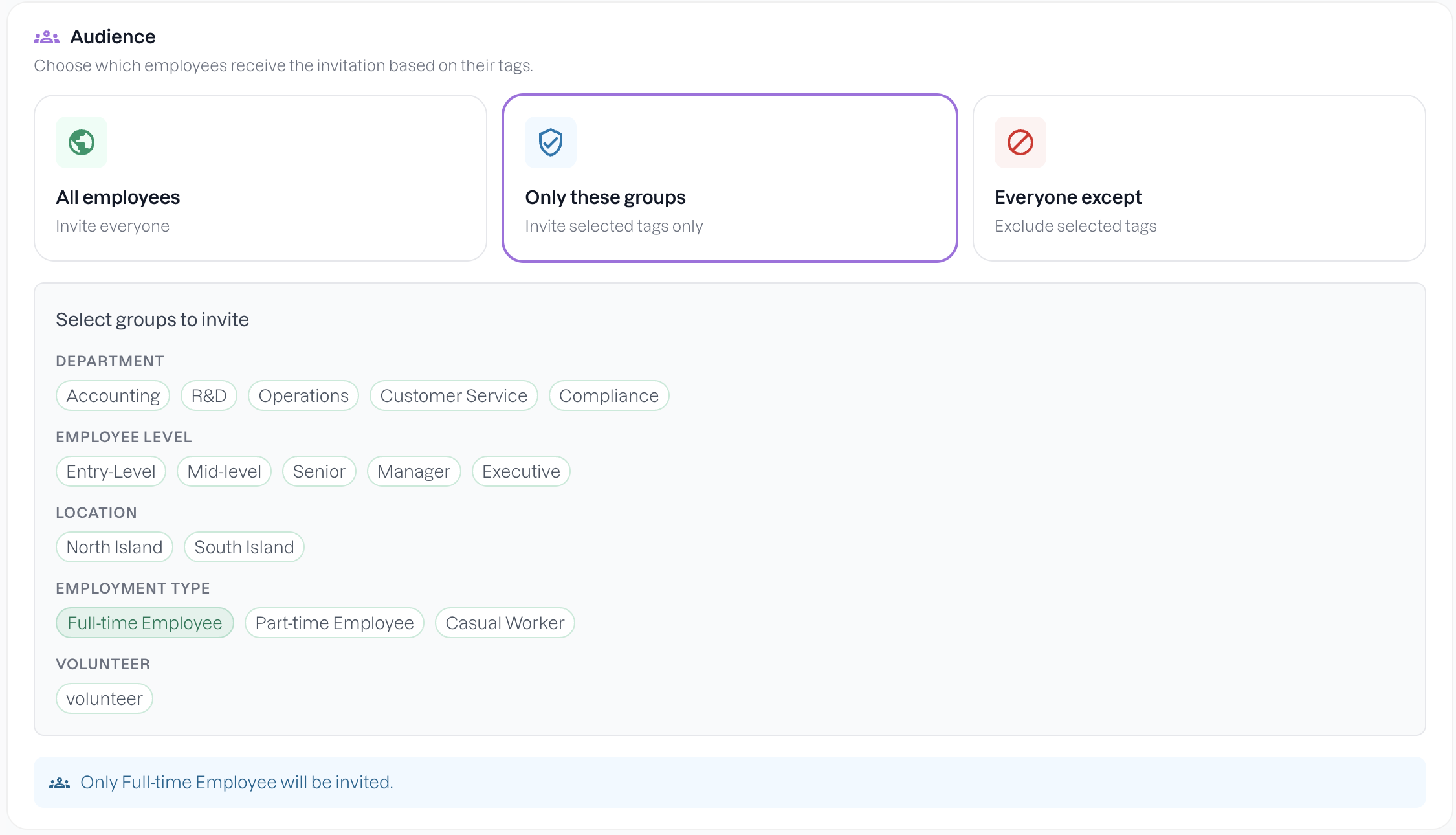
If you Select or Exclude tags, the chosen buttons will be highlighted. Make sure to save these selections by pressing the Save Settings button at the bottom of the page.
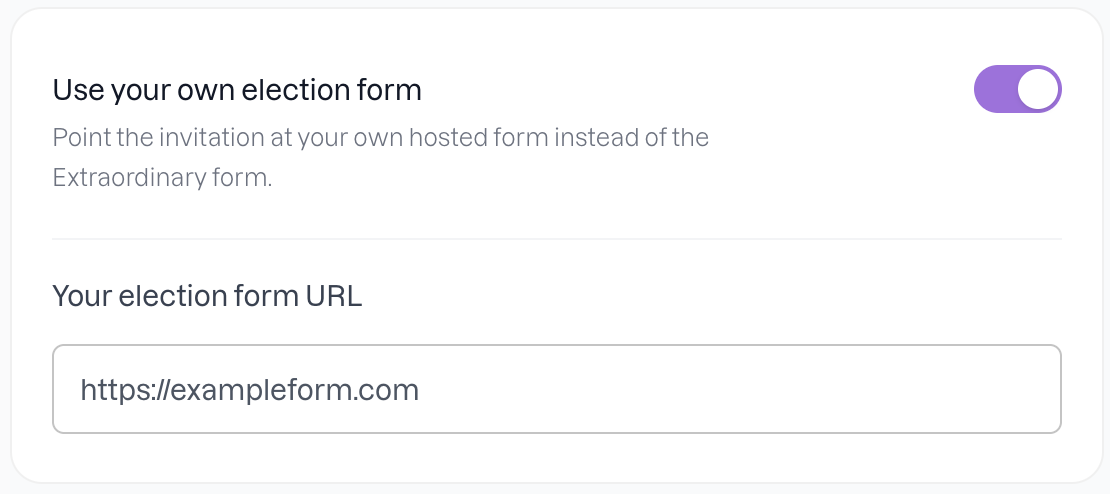
To use your own Election Form, you can select the toggle on this section and enter your own URL 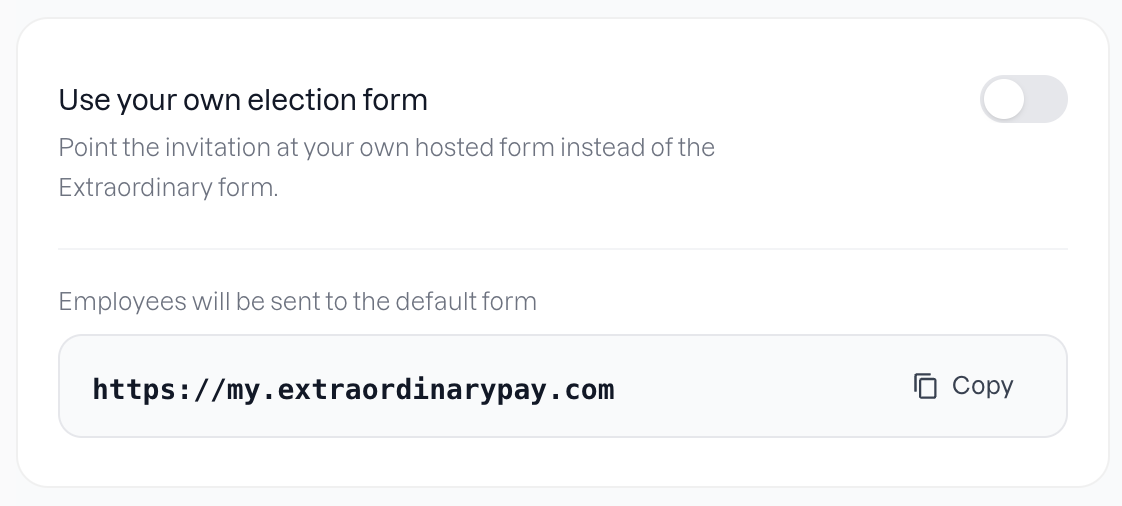
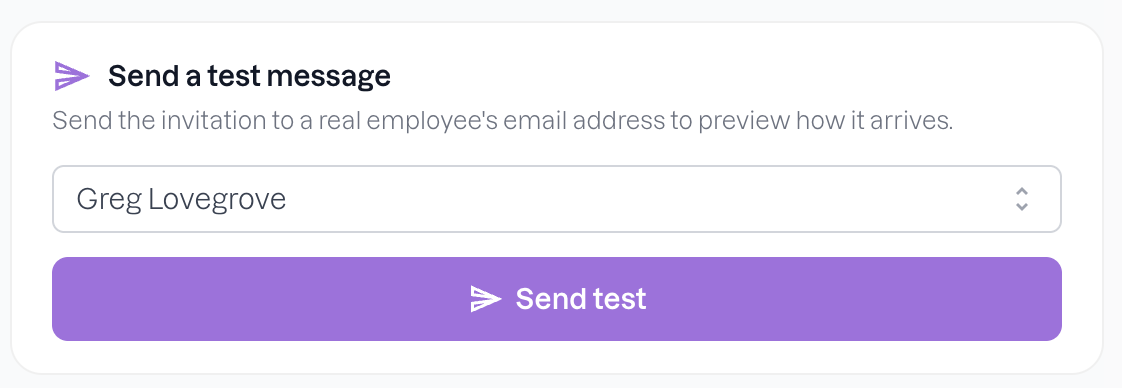
To test the invitation email and Election form link, there is an option to send a test to a selected user
Running the campaign
When you're ready to send the invitation emails to your users, press the "Start campaign" button at the top of the page. Pressing the "Start campaign" button will immediately send an email to all employees.
Once the campaign is running the sequence of emails will be sent to all users. They can opt out by selecting the opt out button in the email. Users will also stop receiving emails if they sign up for the Public Transport benefit.
Any new user added to the Extraordinary system while the campaign is running will automatically be enrolled and receive their first invitation email (if they're in the configure audience).
This means you don't have to send the email to new starters, they'll get it as soon as you add them as a new user to the system.
You can Pause the campaign at any time by pressing the "Pause campaign" button (replaces the "Start campaign" button). This will stop any NEW users form getting enrolled. Existing users in the campaign will need to choose to opt out if they don't want any further emails.